
PagerDuty + OpsBrief
Connect PagerDuty with OpsBrief for AI-powered incident digests, cross-platform event correlation, and operational intelligence.
Integration Benefits
AI-Powered Digests
Receive daily summaries of all PagerDuty incidents, including MTTR, severity breakdown, and affected services.
Cross-Platform Correlation
Correlate incidents with GitHub deployments, Slack messages, and Datadog metrics to identify root causes faster.
Pattern Visualization
Visualize incident patterns with dependency graphs and activity heatmaps to spot recurring issues.
Executive Summaries
Get executive-ready reports for shift handoffs, weekly reviews, and stakeholder updates.
How It Works
OpsBrief connects to PagerDuty via OAuth 2.0 and reads incident data, on-call schedules, and service information using read-only API access.
Incidents, acknowledgments, resolutions, and escalations are automatically synced and correlated with events from your other connected platforms.
OpsBrief's AI analyzes patterns across all your operational data and generates daily or weekly digest emails summarizing what happened.
The Analytics dashboard provides interactive dependency graphs and heatmaps to visualize incident relationships.
Requirements
- PagerDuty Role: A Manager or Admin role is required to authorize the OAuth connection
- OpsBrief Account: Team, Pro, or Enterprise subscription (start a 14-day free trial)
Support
If you need help with this integration, please contact OpsBrief support:
- Email: [email protected]
- Documentation: opsbrief.io/docs/integrations/pagerduty
Integration Walkthrough
In PagerDuty
OpsBrief uses OAuth 2.0 to connect to PagerDuty. No manual integration key or service configuration is required. OpsBrief requests read-only access and cannot create, modify, acknowledge, or resolve incidents.
In OpsBrief
Sign in to OpsBrief
Navigate to opsbrief.io/login and sign in to your account. If you don't have an account, create one here.
Navigate to Integrations
From the left sidebar, scroll to the Admin section and click Integrations. This page shows all available platform connections.
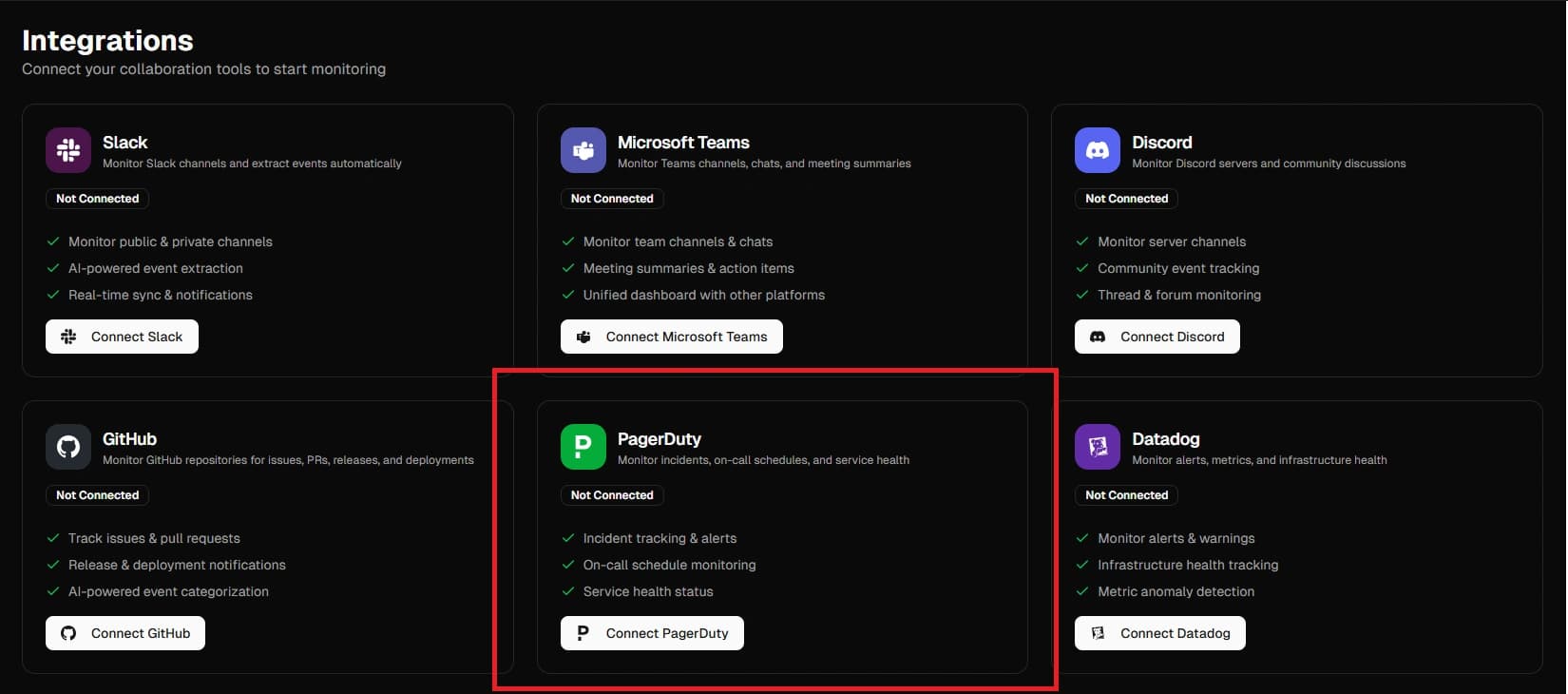
Click Connect on PagerDuty
Find the PagerDuty card and click the Connect PagerDuty button. You will be redirected to PagerDuty's authorization page.
Authorize OpsBrief
On the PagerDuty authorization page, review the permissions requested and click Allow:
incidents:read- Read incident data and historyschedules:read- Read on-call schedulesservices:read- Read service informationanalytics:read- Read incident analytics
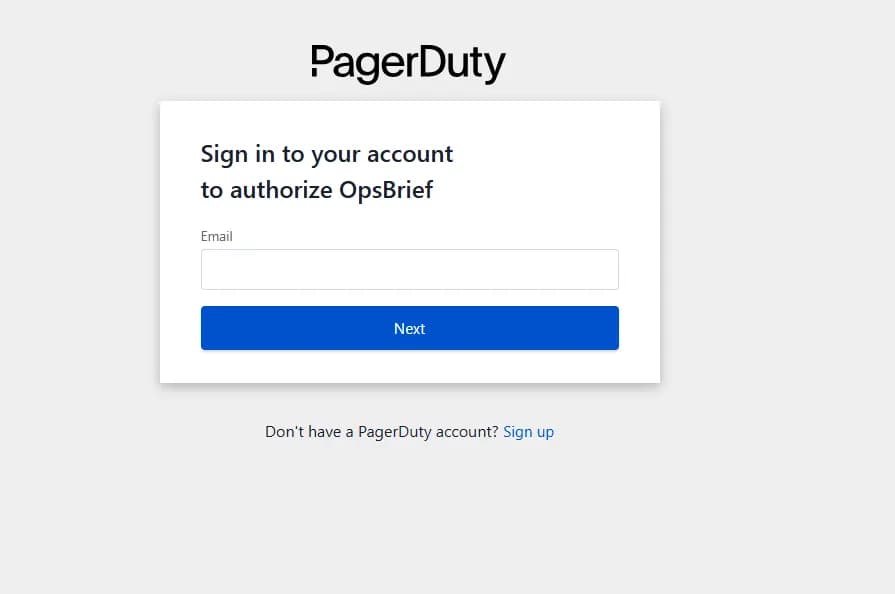
Verify Connection
After authorization, you will be redirected to the OpsBrief Integrations page. The PagerDuty card should now show Connected with a green status indicator.
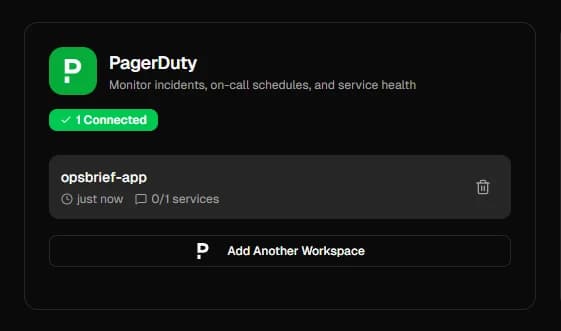
Select Services to Monitor
In the left sidebar under the Admin section, click Channels. You will see all PagerDuty services available in your account. Toggle on each service you want to monitor.
For each service, you can configure which event types to track:
Production Services
- Incidents (all severities)
- Acknowledgments
- Resolutions
- Escalations
Infrastructure Services
- High/Critical incidents
- Escalations
- Service status changes
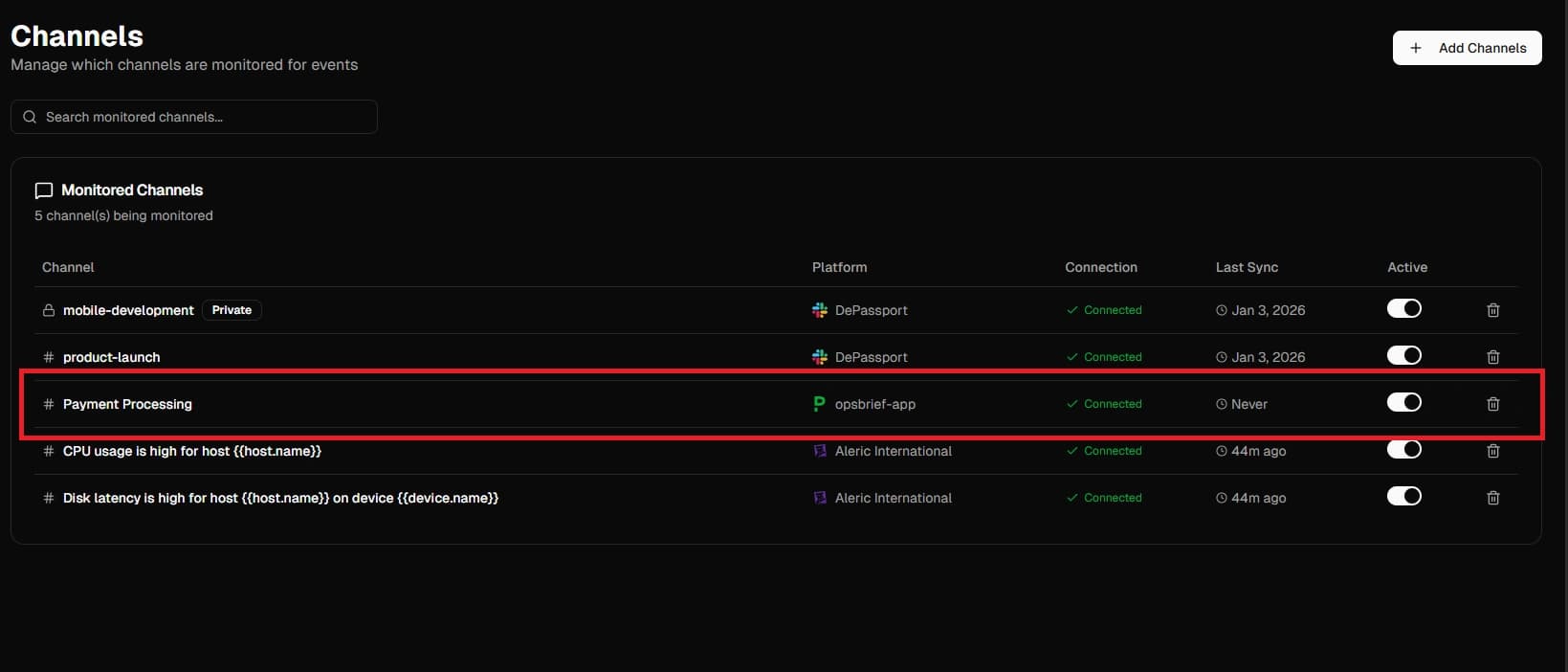
Configure Digest Preferences
Navigate to Settings → Notifications to configure your digest schedule:
- Daily digests - Morning summary of the previous day
- Weekly digests - Monday summary of the previous week
- Real-time alerts - Instant notifications for critical incidents
View PagerDuty Events
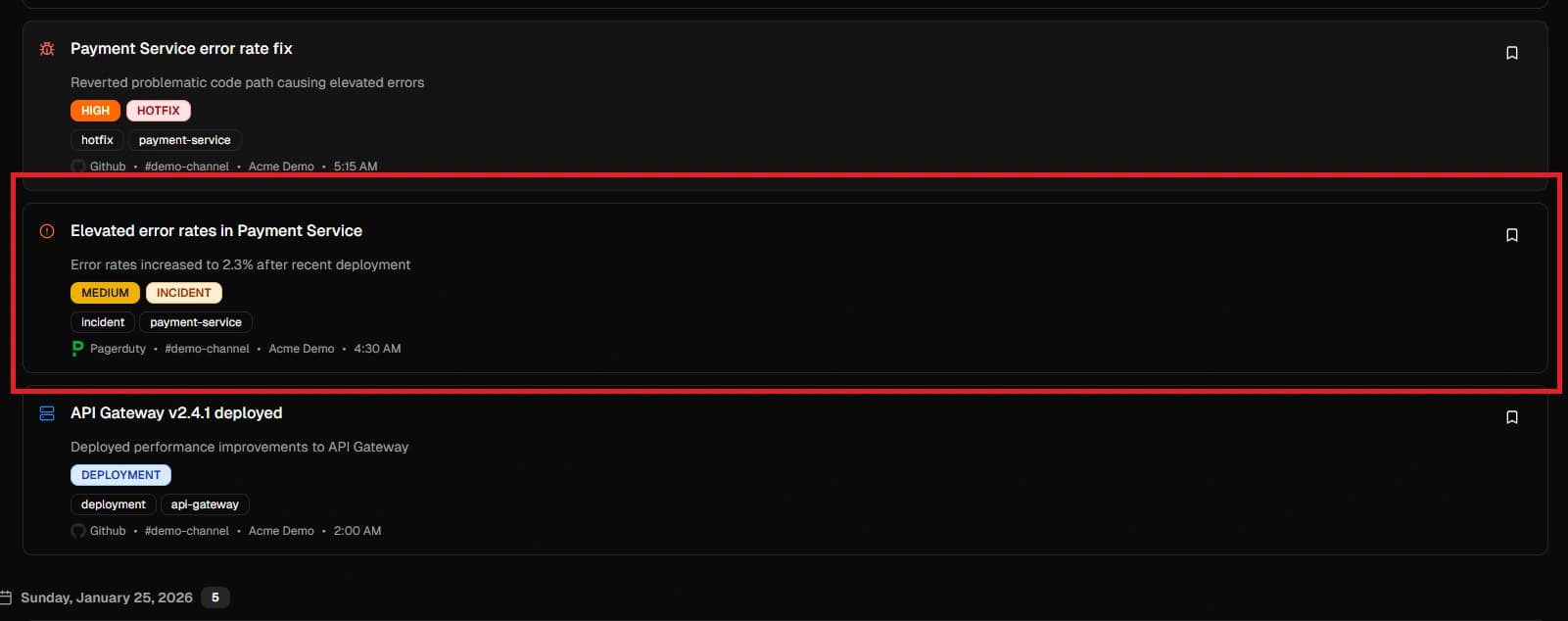
Navigate to the Dashboard or Events page to see PagerDuty incidents alongside events from your other connected platforms. Use the Analytics page to visualize incident patterns and correlations.
How to Uninstall
Disconnect from OpsBrief
- 1.Sign in to your OpsBrief account at opsbrief.io/login
- 2.In the left sidebar under Admin, click Integrations
- 3.Find the PagerDuty card and click the delete icon on the service(s) you want to disconnect.
- 4.Confirm the disconnection when prompted
Historical data that was already synced will be preserved, but no new data will be collected.
Revoke Access from PagerDuty
- 1.Sign in to PagerDuty at app.pagerduty.com
- 2.Navigate to Integrations → Apps & Add-Ons
- 3.Find OpsBrief in the list and click Revoke